
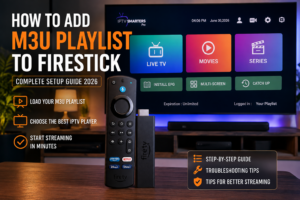
M3U Playlist to Firestick
Using an M3U playlist on Firestick is a convenient way to organize compatible IPTV streams in one place. The Fire TV platform supports Android-based applications, while the exact apps available can vary depending on the device and marketplace.
The basic process is straightforward:
Firestick → IPTV Player → M3U Playlist → Compatible Streams
In this guide, you’ll learn how to add an M3U playlist to Firestick, how to choose a compatible IPTV player, and what to check if your playlist doesn’t load correctly.
If you’re completely new to M3U playlists, start with our M3U IPTV Playlist Complete Guide before continuing.
An M3U playlist is a text-based playlist containing information about media streams.
The playlist itself doesn’t normally contain the video content. Instead, it provides information that a compatible player can use to access the streams.
On Firestick, an IPTV player reads the playlist and organizes the available content into categories, channels, or other sections supported by the application.
For a more detailed explanation, see:
Before starting, you’ll need three things.
You need a compatible Fire TV device connected to your television and internet connection.
Amazon’s current Fire TV lineup includes several streaming devices, including Fire TV Stick models and Fire TV Cube.
You’ll need an application capable of loading your M3U playlist.
One popular option is TiviMate, which describes itself as a media player that allows users to add their own playlists. It does not provide channels or streaming content itself.
You also need an M3U URL from a legitimate source that you’re authorized to access.
The URL should normally be copied exactly as provided.
The exact menu names can vary between applications and Fire OS versions, but the general process is similar.
First, make sure your Firestick is connected to a stable internet connection.
From the Fire TV interface, open the network settings and connect to your Wi-Fi network.
A stable connection is particularly important when streaming high-resolution content.
Open the application marketplace available on your Fire TV device and search for an IPTV player that supports M3U playlists.
Amazon Fire TV uses the Amazon Appstore rather than the Google Play Store.
If the player you want is officially available for your device, install it through the supported app store.
A dedicated player can provide features such as:
For example, TiviMate currently lists multiple playlists, favorites, search, multiview, catch-up, and recording among its features.
For a broader comparison of players, see our:
Best IPTV Players for M3U Playlists in 2026
After installation, launch the application from your Firestick.
The first screen may ask you to add a playlist or configure your IPTV source.
Depending on the application, you may see options such as:
Select the option that allows you to add an M3U URL.
Copy your M3U playlist URL and paste it into the appropriate field.
Make sure you enter the complete URL.
Even a small mistake can prevent the playlist from loading.
Check for:
Then select the option to continue, save, or load the playlist.
Your IPTV player will now attempt to retrieve the playlist.
The loading time depends on:
A small playlist may load quickly, while a very large playlist can take longer.
Once the playlist loads, your IPTV application may organize the content into categories.
Depending on the playlist and player, you may see categories such as:
You can then use features such as favorites and search to make navigation easier.
If your IPTV source provides an Electronic Program Guide (EPG), you may be able to add the EPG URL separately.
An EPG can display:
The exact EPG setup depends on the IPTV player and the source you’re using.
Not every M3U playlist includes EPG information.
After everything loads, test several channels rather than checking only one.
This helps you determine whether the problem is:
If several channels work normally, your basic setup is probably correct.
Some IPTV applications support a local M3U file in addition to an online M3U URL.
The process is generally:
However, the exact process depends on the IPTV application.
For most users, an M3U URL can be more convenient because the playlist can be hosted remotely and updated by its source.
Both methods can be useful.
| Feature | M3U URL | M3U File |
|---|---|---|
| Stored online | Yes | No |
| Requires file transfer | No | Usually |
| Easy to update | Usually | Manual |
| Simple setup | Yes | Depends on app |
| Common IPTV method | Yes | Yes |
If your IPTV source gives you an M3U URL, using the URL is generally the simpler option.
There isn’t one universal best player.
Your choice depends on the interface and features you want.
TiviMate is designed for Android TV devices and focuses on managing user-provided playlists. Its official site lists features including multiple playlists, favorites, search, multiview, catch-up, and recording.
Best for: Users who want an advanced TV-style interface and playlist organization.
Read our full comparison:
Best IPTV Players for M3U Playlists in 2026
Other IPTV applications may also support M3U playlists.
Before installing one, check:
Application availability can change, so don’t assume that an app available on Android TV will necessarily be available through the Fire TV app store.
If your M3U source provides an updated playlist, you may need to refresh the playlist inside your IPTV application.
The exact option depends on the player.
Look for options such as:
If you’re using a dynamic M3U URL, you may only need to refresh the playlist rather than manually replace it.
If your M3U playlist isn’t loading, don’t immediately assume that the Firestick is the problem.
There are several possible causes.
Make sure the URL was copied correctly.
Try copying it again directly from the source.
Some playlist URLs are temporary.
If the URL has expired, the player may be unable to retrieve the playlist.
In that situation, you’ll need a current URL from the legitimate source.
Open another streaming application on your Firestick.
If other streaming services also have problems, the issue may be your network connection rather than the M3U playlist.
Close the application completely and open it again.
Then refresh the playlist.
A simple restart can sometimes resolve temporary application or network problems.
If the playlist works elsewhere but not in your Firestick application, the problem may be related to the player’s compatibility or configuration.
If only one channel doesn’t work while others play normally, the issue may be specific to that stream.
If the entire playlist fails, investigate the playlist URL, player, and network connection first.
For a complete troubleshooting guide, see our upcoming:
M3U Playlist Not Working: Common Problems and Fixes
A properly configured player isn’t enough if the network connection is unstable.
Place your Firestick where it has a strong connection to your router.
If multiple devices are using the network heavily, streaming performance can be affected.
If your setup supports a compatible Ethernet connection, a wired connection can provide more consistent network performance.
Keeping the device and applications updated can help with compatibility and stability.
Use the current supported version of your player whenever possible.
A VPN is not inherently required for an M3U playlist to function.
Whether you use one depends on your privacy preferences, network setup, and local requirements.
A VPN also cannot fix:
If the playlist itself is invalid, changing network routing won’t make the source valid.
The M3U format itself is simply a playlist format.
What matters is the content and source you’re accessing.
You should only use streams and playlists that you are authorized to access and follow the copyright laws applicable in your location.
TiviMate itself also states that it is only a media player and does not provide or distribute channels or streams.
Yes, if you have a compatible IPTV player that supports M3U playlists and a valid M3U source.
For most users, the easiest method is to install a compatible IPTV player and enter the M3U playlist URL directly into the application.
TiviMate is designed to work with user-provided playlists and supports playlist management features. Its official website states that it is a media player and does not provide content itself.
Common causes include an incorrect URL, expired playlist, network problems, player compatibility issues, or problems with the source server.
Yes, if your IPTV application supports importing local playlist files. The exact process depends on the application.
A VPN isn’t technically required for an M3U playlist to load. Whether you use one depends on your privacy preferences and local circumstances.
You generally need compatible software to interpret the playlist and play the associated streams. An M3U file itself isn’t a media player.
Adding an M3U playlist to Firestick is generally a simple process once you have a compatible player and a valid playlist.
The basic workflow is:
Get a valid M3U URL → Install a compatible player → Add the playlist → Load the channels → Configure EPG → Start watching
The exact menus can vary between IPTV applications, so always follow the instructions provided by your chosen player.
For more information about M3U playlists, visit our M3U IPTV Playlist Complete Guide.
If you want to compare different applications before choosing one, read our Best IPTV Players for M3U Playlists in 2026 guide.